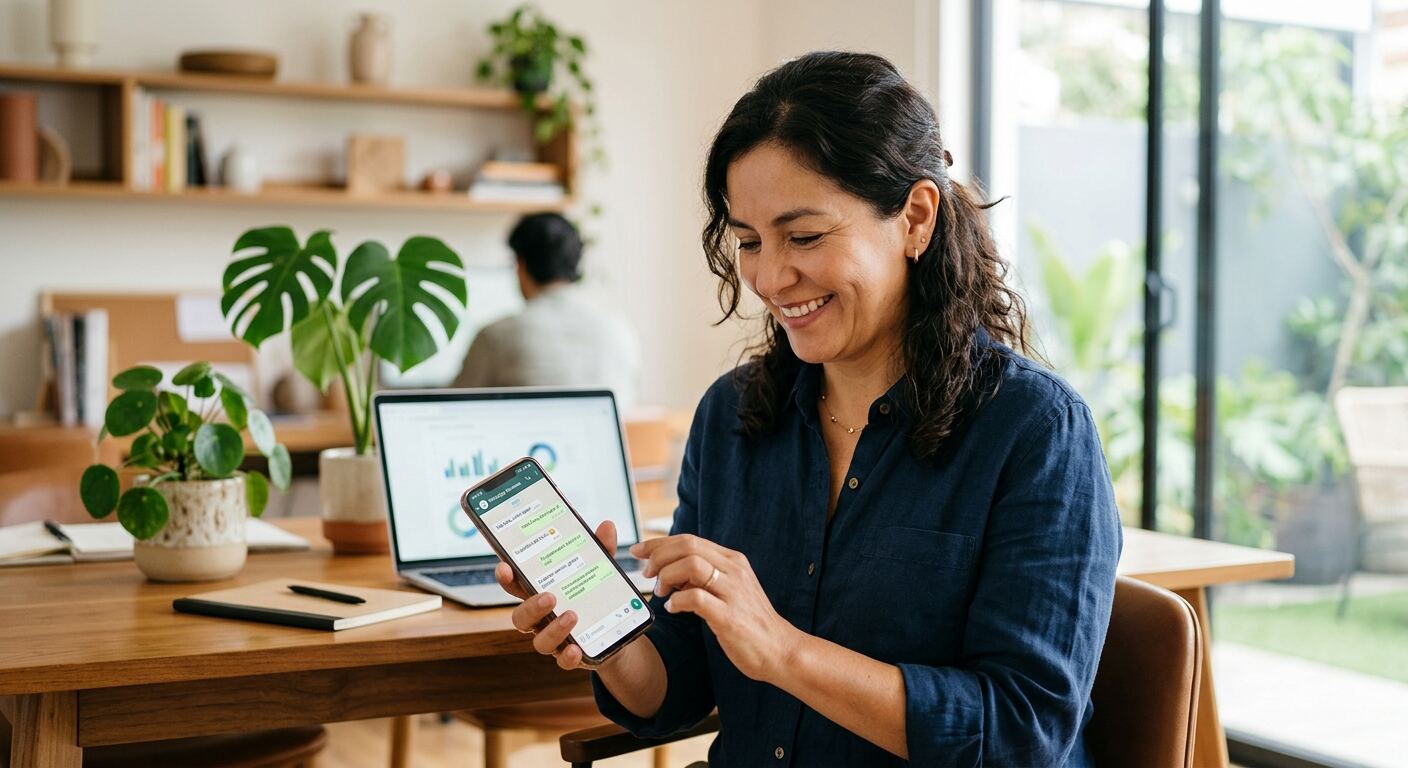
Setting up automatic replies on WhatsApp Business is one of the first things you can do to make your business run more efficiently. Imagine a customer writes to you on a Sunday afternoon, or at 11 at night, and gets an instant reply. This not only improves the customer experience but also gives you a break.
These basic tools let you make sure no one goes without an initial response, even when you or your team are unavailable. It is a simple way to keep communication active and show professionalism, without having to be glued to your phone all day.
In this guide, we will take you step by step through setting up welcome messages, away messages, and quick replies. You will see how these features help you organize your operation, reduce manual follow-up, and keep your customers informed without extra effort.
Ready to set up your automatic replies?
Taking a few minutes to set up these basic WhatsApp Business tools can change the way you interact with your customers. It is not about replacing personalized service, but complementing it and making sure there is always a first response.
Think of it as having a virtual assistant that never sleeps. For example, if you have a clothing store and a customer asks about your opening hours outside of your work schedule, an automatic message can give them that information instantly, preventing the customer from getting discouraged by a lack of response.
Step 1: Access the business tools
The first step is to open your WhatsApp Business app and go to the tools the app offers. It is a simple process, whether you use Android or iPhone.
On Android, go to the three vertical dots in the top right corner, then select 'Business tools'. On iPhone, go to 'Settings' in the bottom right corner and then select 'Business tools'. Here you will find all the options to manage your profile and your automatic messages.
Step 2: Set up your welcome message
The welcome message is the first thing your new contacts will see, or those who write to you after 14 days of inactivity. It is your chance to make a good first impression.
You can write a message like: 'Hello. Thank you for contacting [Your business name]. We will be with you shortly. In the meantime, you can visit our website [link]'. You can also choose who to send this message to: everyone, those not in your address book, everyone except certain people, or only specific contacts.
Step 3: Set up your away message
The away message is crucial for when you cannot reply right away, whether outside of business hours, on holidays, or during your vacation. It lets your customers know when to expect a reply.
A good message could be: 'Hello. Thank you for your message. Our business hours are Monday to Friday from 9:00 to 18:00 hrs. We will reply as soon as possible on the next business day'. You can schedule this message to always send, on a custom schedule (for example, outside your business hours), or only on specific days.
Step 4: Create your quick replies
Quick replies are shortcuts for the messages you send most often. They save you time by not having to type the same thing over and over. Think about the most common questions you get.
For example, if people constantly ask for your address, you can create a quick reply with the shortcut '/address' and the message 'Our address is 123 Fake Street, Made Up Neighborhood, Mexico City'. To use them, simply type '/' in the chat and select the quick reply you need.
Extra tips for a good setup
To make your automatic replies truly useful, consider these points. First, be clear and concise in your messages. Avoid long texts that might bore or confuse. Second, review your messages often to make sure the information is still current and relevant. For example, if you change your hours or promotions, update your quick and away replies.
A well-written and updated message conveys professionalism and helps your customer feel they are being taken care of, even by a bot.
Your business, always active with WhatsApp Business
Setting up these automatic replies is a fundamental step to organize your operation and stop relying so much on manual follow-up. It allows you to have your business always active, providing basic information and initial service, no matter the time or day. It is a simple but powerful tool for any SMB in Mexico.
Your Android, your customer service center
WhatsApp Business on Android is very intuitive for setting up these automations. The interface is designed so that, even if you are not a tech expert, you can set your messages without complications. Most business owners in Mexico use Android, so it is important to know that the experience is smooth.
Steps to set up on Android
1. Open WhatsApp Business. 2. Tap the three vertical dots in the top right corner. 3. Select 'Business tools'. 4. Choose between 'Welcome message', 'Away message', or 'Quick replies'. 5. Turn on the option, edit the message, and set the recipients or schedule as needed.
It is a straightforward process that will only take you a few minutes.
Tips for Android users
Take advantage of WhatsApp Business notifications on Android to stay on top of incoming messages, even if you have automatic replies set up. This lets you step in quickly if a customer has a complex question that the automatic message cannot resolve. Also, consider using chat labels to organize your conversations and follow up with customers who have received an automatic message.
Differences (if any) with other versions
Setting up automatic replies in WhatsApp Business is very similar between Android and iOS (iPhone). The main differences are usually cosmetic in the user interface, like the location of the 'Settings' or 'Business tools' menu. However, the features and steps to set up welcome messages, away messages, and quick replies are practically identical on both platforms.
Conclusion: Your business always with you
With these settings on your Android, your business is always present for your customers. It is an effective way to connect sales, customers, and reports, at least in the initial communication phase, making sure no inquiry goes unanswered.
WhatsApp Business Web: Your office on the computer?
WhatsApp Business Web lets you use your account from your computer, which is very useful if you spend a lot of time in front of a screen. You can type faster, attach files easily, and have a wider view of your chats. It is like having your customer service office in your browser.
Can you set up automatic replies on Web?
Currently, setting up welcome messages, away messages, and quick replies is done directly from the WhatsApp Business mobile app. WhatsApp Business Web lets you manage and use these replies once they are already set up on your phone, but not create or edit them from scratch on the web version. This means your phone remains the control center for these automations.
How to manage your replies from the Web
Although you cannot set them up, you can use your quick replies on WhatsApp Business Web. Simply type '/' in the text field of any chat, and a list of your set quick replies will appear. You can select them to send quickly. This is very handy for teams managing chats from a computer.
Advantages of using WhatsApp Business Web
The main advantage is the comfort and efficiency of replying to messages. By using a physical keyboard, you can help more customers in less time. It also makes it easier to send files or links you have saved on your computer. It is an excellent addition to your mobile app, especially if your business has a high volume of messages.
Conclusion: Complement your service
WhatsApp Business Web is a powerful tool to complement the customer service you start with your automatic replies from your mobile. It helps you manage chats more efficiently once the customer has already received the first automated information.
Need a break from automatic replies?
There might be times when you need to turn off or change your automatic replies. Maybe you are launching a special promotion and want all messages to be personalized, or you simply need to adjust the schedule of your away message. You have total control over these features.
How to turn off the welcome message
To turn off the welcome message, go to 'Business tools', then 'Welcome message', and turn off the switch that enables it. It is an instant process and you can turn it back on whenever you need it.
How to turn off the away message
Similarly, for the away message, go to 'Business tools', then 'Away message', and turn off the switch. If you had it scheduled by time, you can simply change the schedule so it does not send at certain times.
How to delete or edit quick replies
To edit a quick reply, go to 'Business tools', then 'Quick replies', select the reply you want to change, and make your edits. To delete it, select the reply and look for the 'Delete' option (usually a trash can icon or three vertical dots with the 'Delete' option).
Why would you want to turn them off?
You might want to turn them off temporarily for specific campaigns where personalization is key, or if your message volume is very low and you prefer a 100% manual interaction. Also, if you are testing new communication strategies, you could turn them off to see how your customers respond without automatic intervention. Flexibility is key to knowing which process to automate first and which not to.
Conclusion: You are in control
The ability to turn on, turn off, and change your automatic replies gives you total control over your business communication. You can adapt these tools to your changing needs, making sure they are always aligned with your real operation and your goals.